
What to know before you start
Data source
Prepare at least one data source: Google Sheets, a CSV file, or a PostgreSQL database. Daymark will pull data from these data sources.
Questions (optional)
You can start with a specific business question, or use Daymark’s starter questions to explore your data right away.
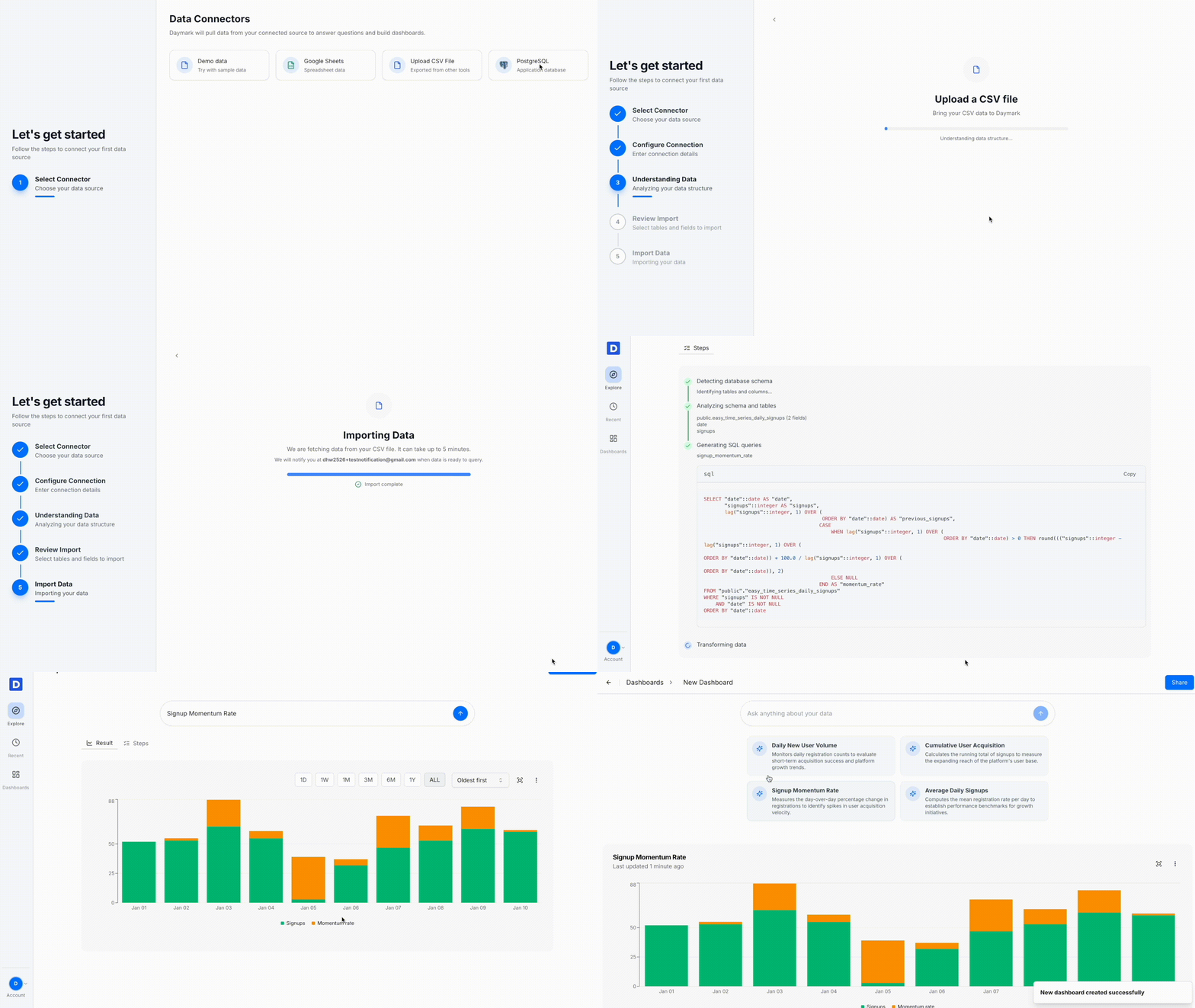
Quickstart: Create your first insight
1. Open Daymark and go to Explore
Log in to your Daymark workspace. The Explore page opens with a chatbox where you can ask questions and a visible Add Data Source button.2. Connect your data
- Click Add Data Source on the Explore page.
- Choose where your data lives:
- Google Sheets: Authenticate and select the sheet or tab you want to analyze.
- Upload CSV file: Upload a CSV file directly.
- PostgreSQL: Enter your database connection details.
- Demo sample data: Use a sample dataset if you’re just exploring Daymark.
- Follow the prompts to complete the connection.
3. Ask a question in plain English
Type your question into the chat box as if you were talking to a teammate:- “What were our total sales last month by region?”
- “Which product had the highest daily active users this quarter?”
- “Daily sign-ups vs conversions this month.”
4. Review and refine the visual answer
Daymark returns an answer as a chart or table, depending on your question:- Bar charts for comparisons
- Line charts for trends over time
- Tables for detailed records
5. Add the insight to a dashboard
When you see an answer worth tracking:- Click the ⋮ menu on the top-right of the chart.
- Select Add to Dashboard.
- Choose to create a new dashboard or add it to an existing one.
6. Share and keep everyone aligned
Open the dashboard view and click Share. Enter your teammates’ email addresses to give them access. They’ll receive a secure link and always see the latest version of the dashboard, powered directly by your data.What’s next
Connect more sources
Learn how to add additional databases, Sheets, or CSV workflows.
Build a dashboard
Create a shareable dashboard that keeps your key metrics and charts in one place.