Skip to main contentOverview
This guide walks through connecting a Google Sheet to Daymark using the Explore flow.
It expands on the Google Sheets setup with step-by-step visuals and field selection tips.
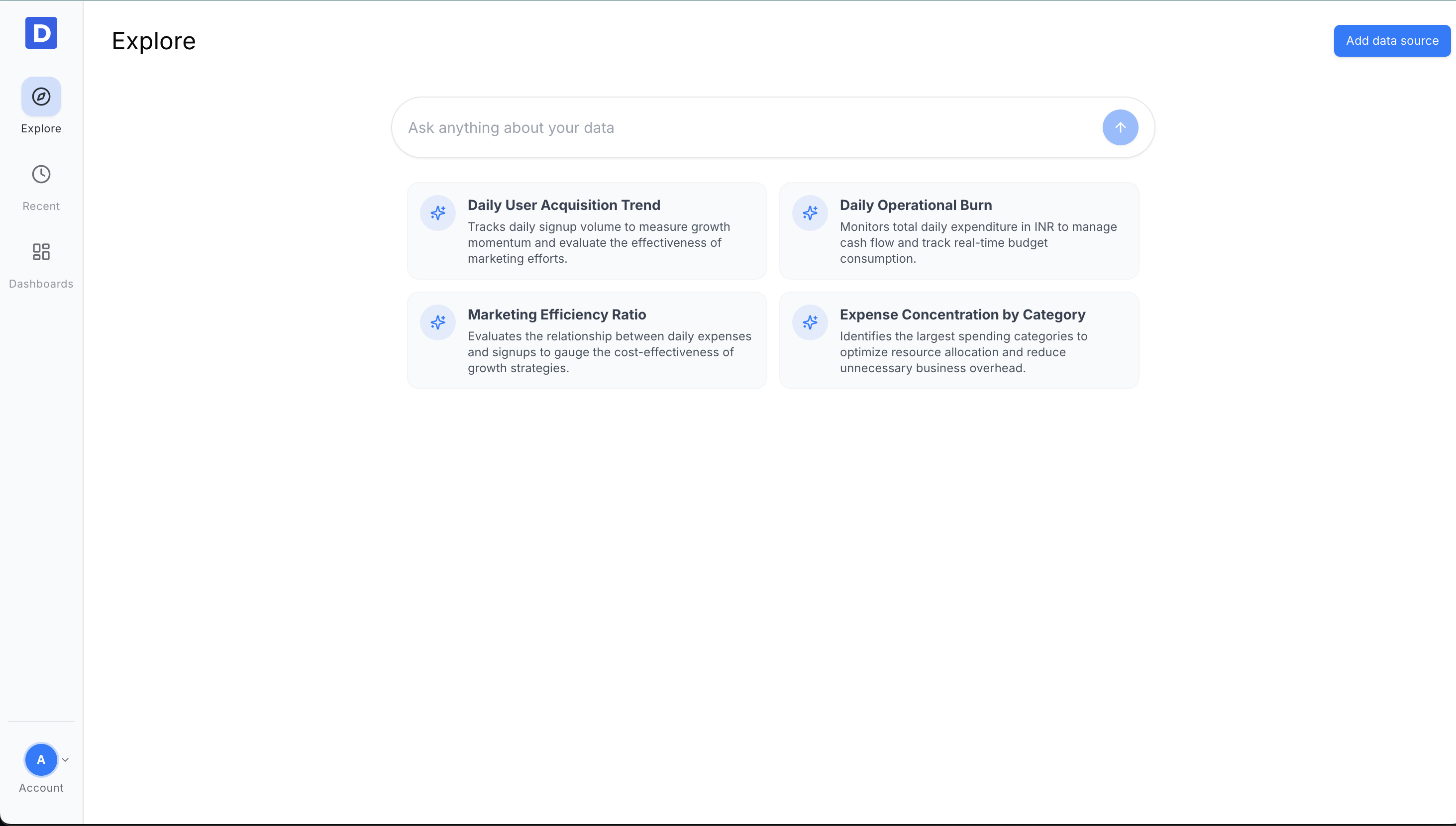
Open the Explore Page
From your Daymark workspace, open Explore to start the connection flow.
Open Data Connectors
Click Add data source to open the list of available connectors.
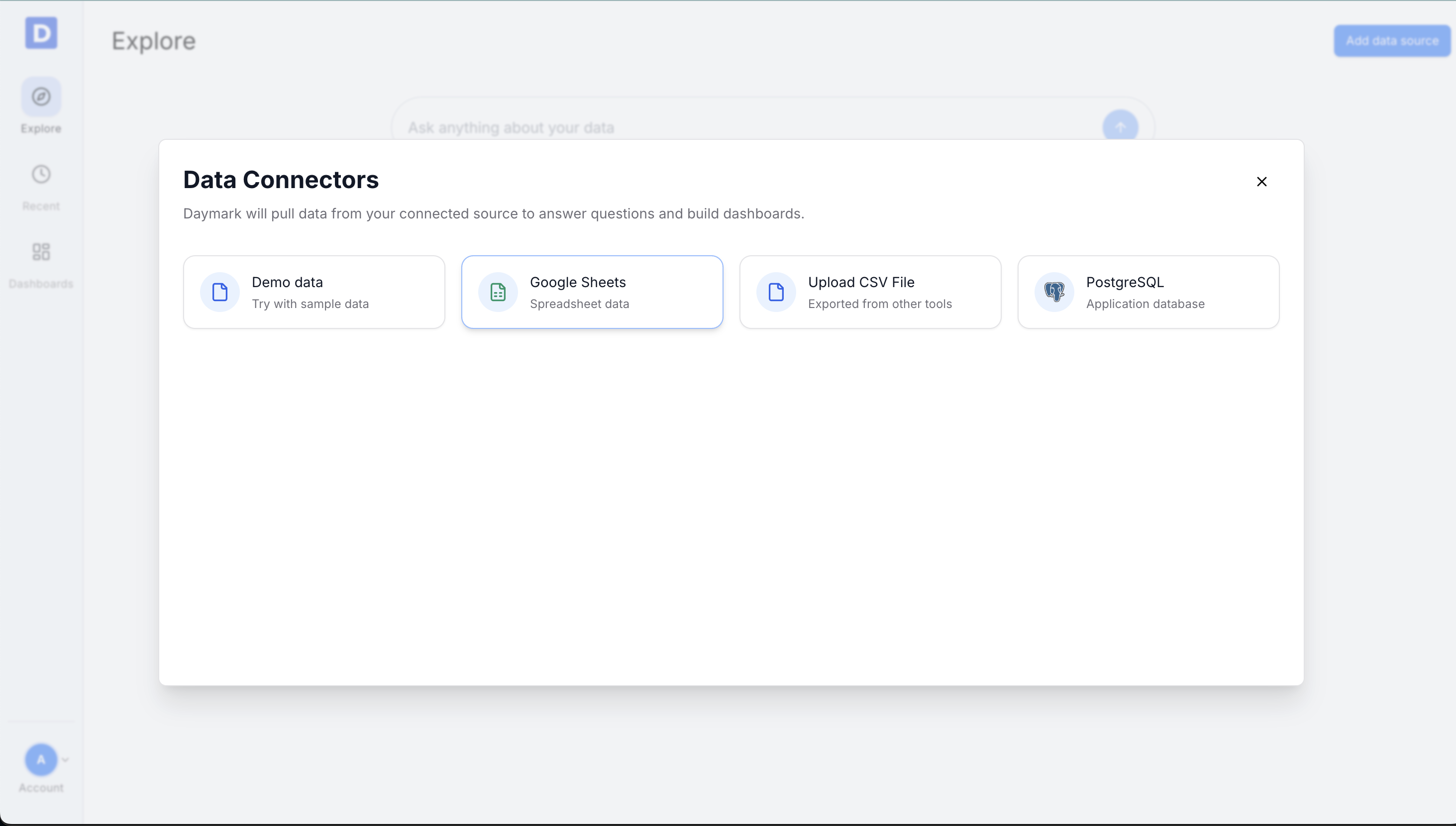
Share the Sheet with Daymark
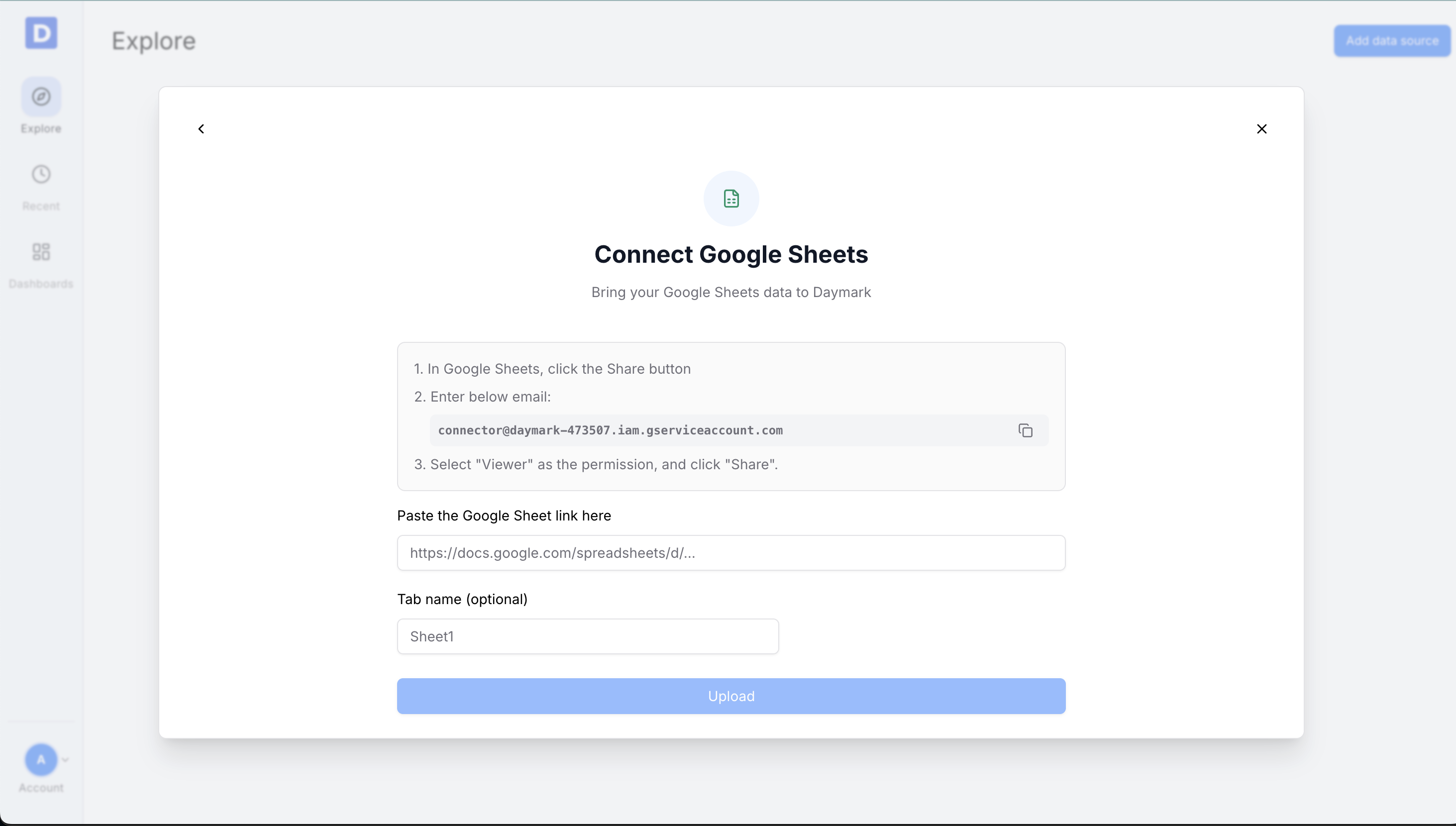
In Google Sheets, click Share and add the Daymark service account as a viewer:
connector@daymark-473507.iam.gserviceaccount.com
Paste the Sheet Link
Back in Daymark:
- Paste the Google Sheet URL
- Optionally enter a specific tab name
- Click Upload
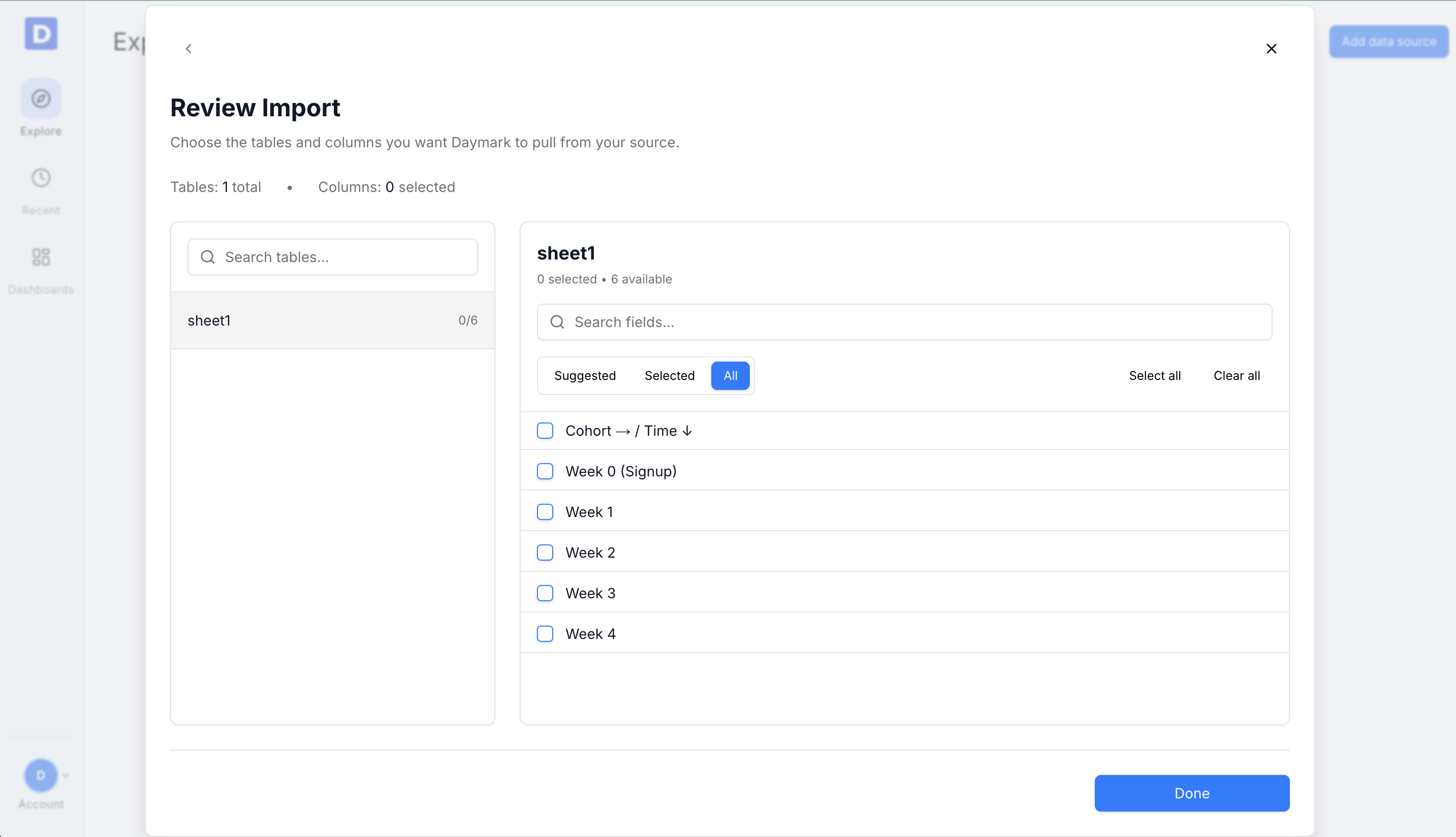
Select Fields for Insights
Choose the columns you want Daymark to use:
- Select All to include every column
- Or pick only the fields relevant to your analysis
Click Done to import the data.
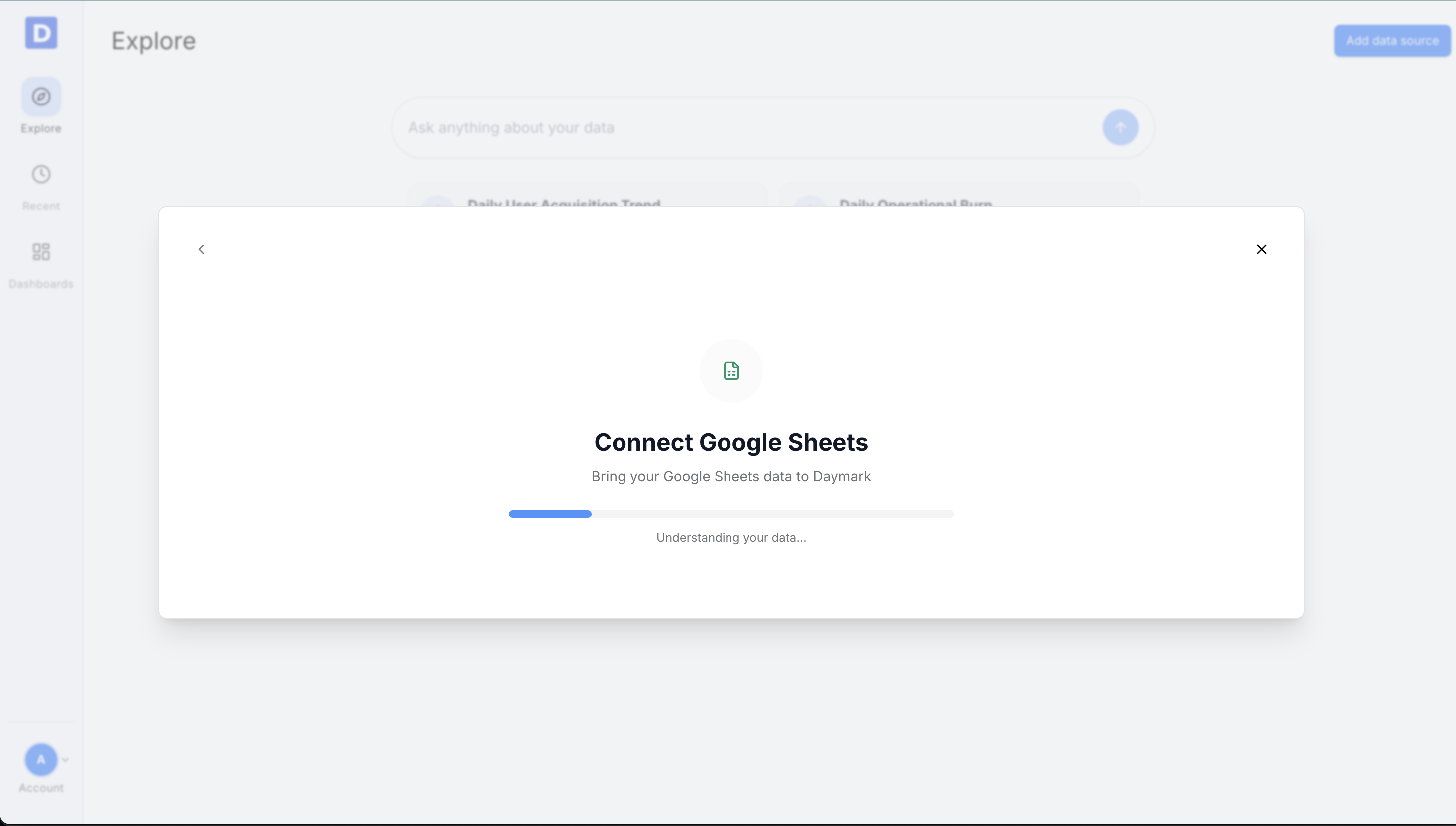
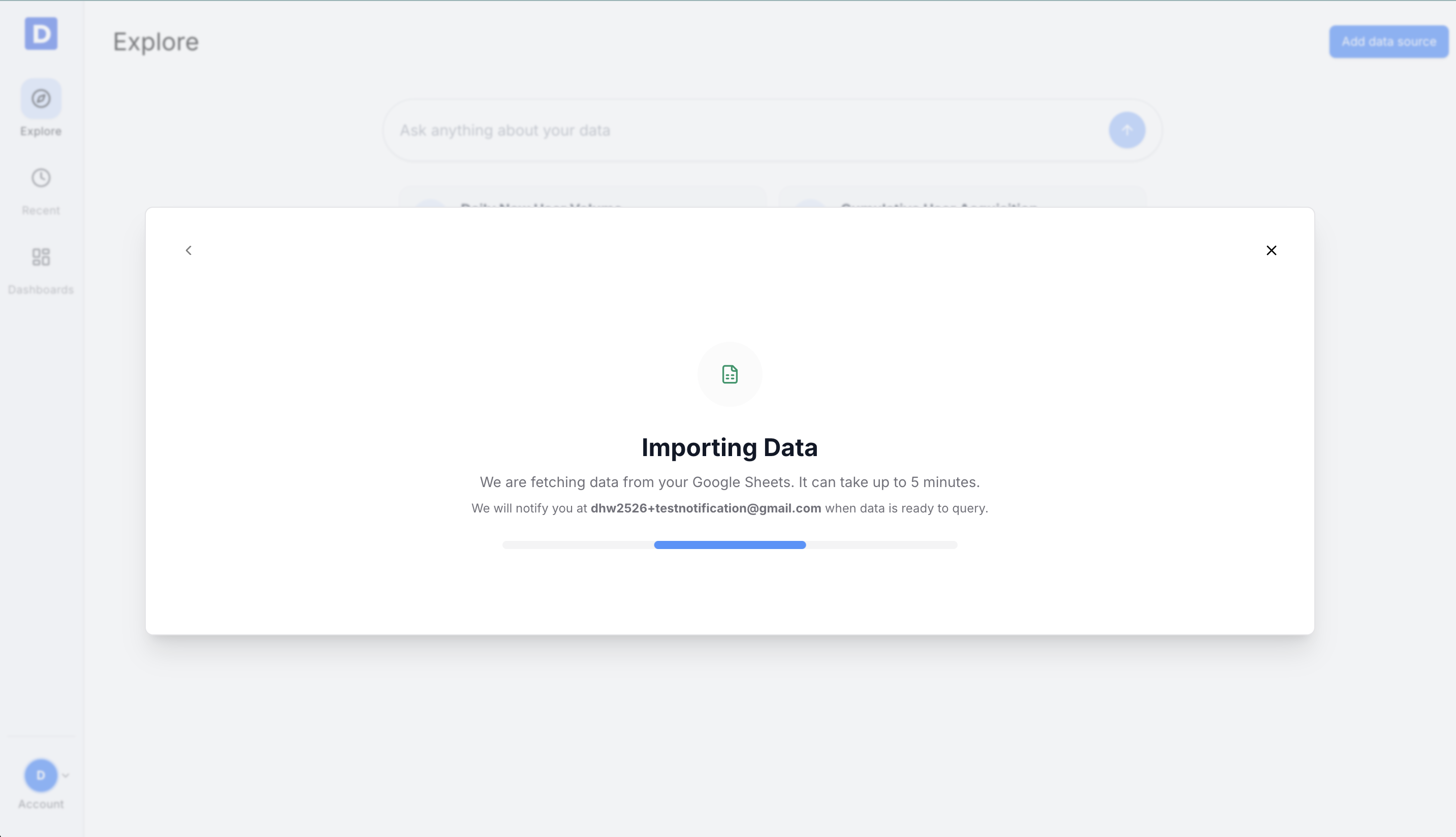
Importing Data
Daymark prepares the sheet data for analysis.
Next Steps
Ask your first question or add results to a dashboard once the data is indexed. 