Overview
Daymark connects to NeonDB through a PostgreSQL connection string. This guide shows where to find it in Neon and how to use it in Daymark.Get the Neon Connection String
1
Open your Neon project
In Neon, open the project you want to connect.
2
Open the Connect panel
Click Connect to open the connection options.
3
Show the password
In the connection string section, enable Show password so the full string is visible.
4
Copy the connection string
Copy the full connection string.
Connect NeonDB in Daymark
1
Open the PostgreSQL connection flow
After login, open the Explore page and click Add Data Source.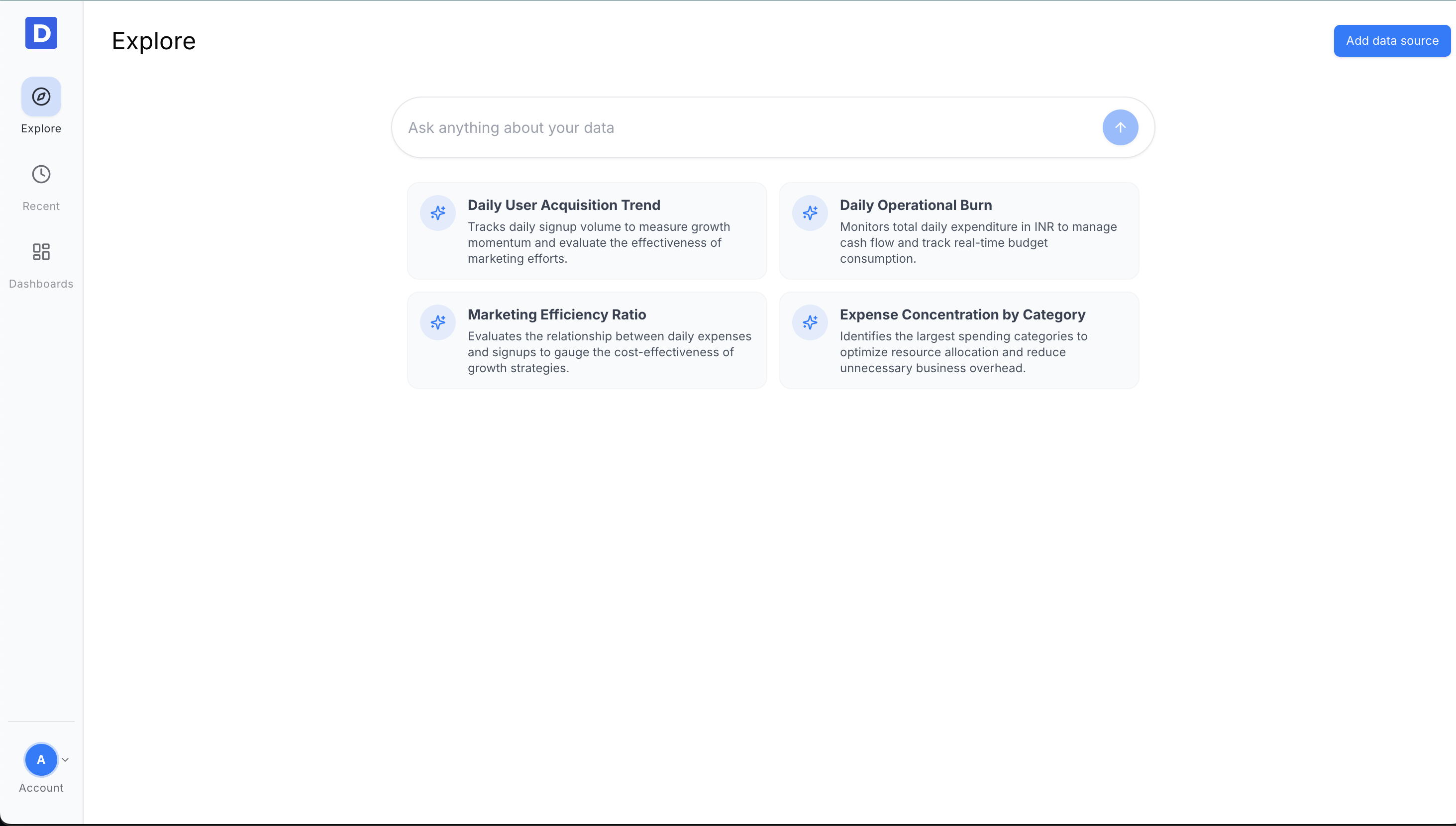
2
Select PostgreSQL
Choose PostgreSQL as the data source.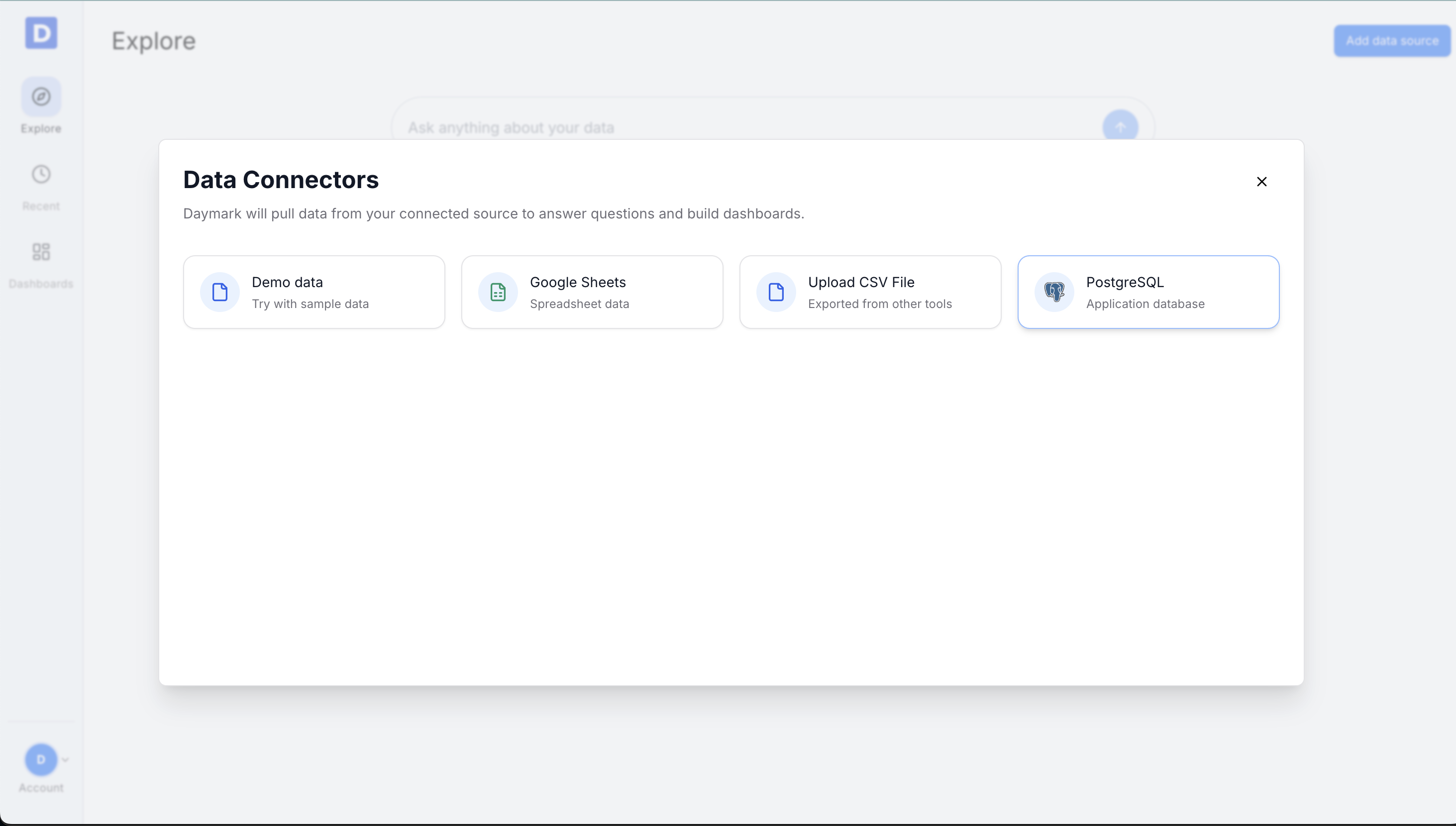
3
Paste the connection string
Paste the Neon connection string into the Connection string field.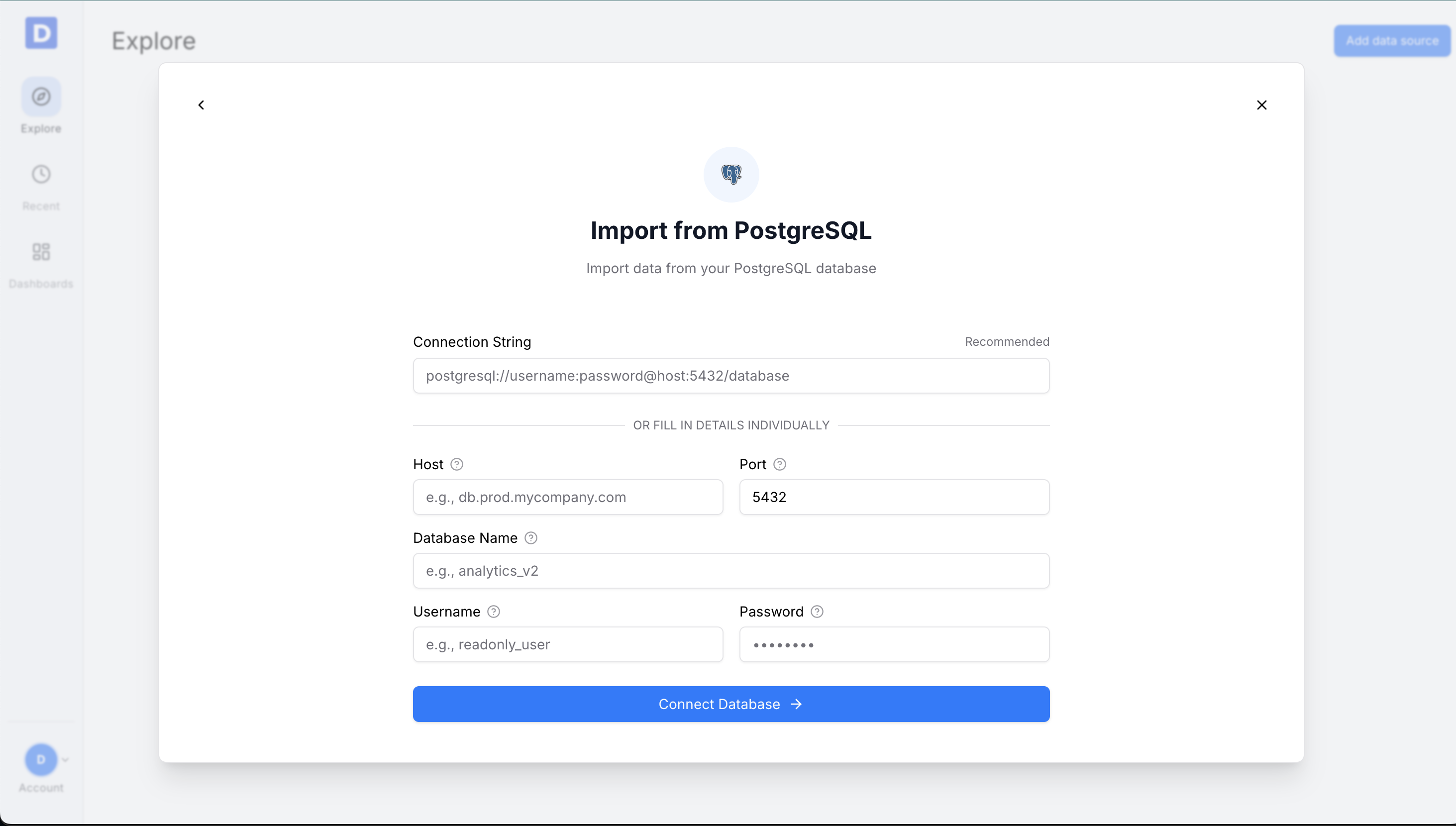
4
Select tables and fields
Choose the tables and columns you want to include.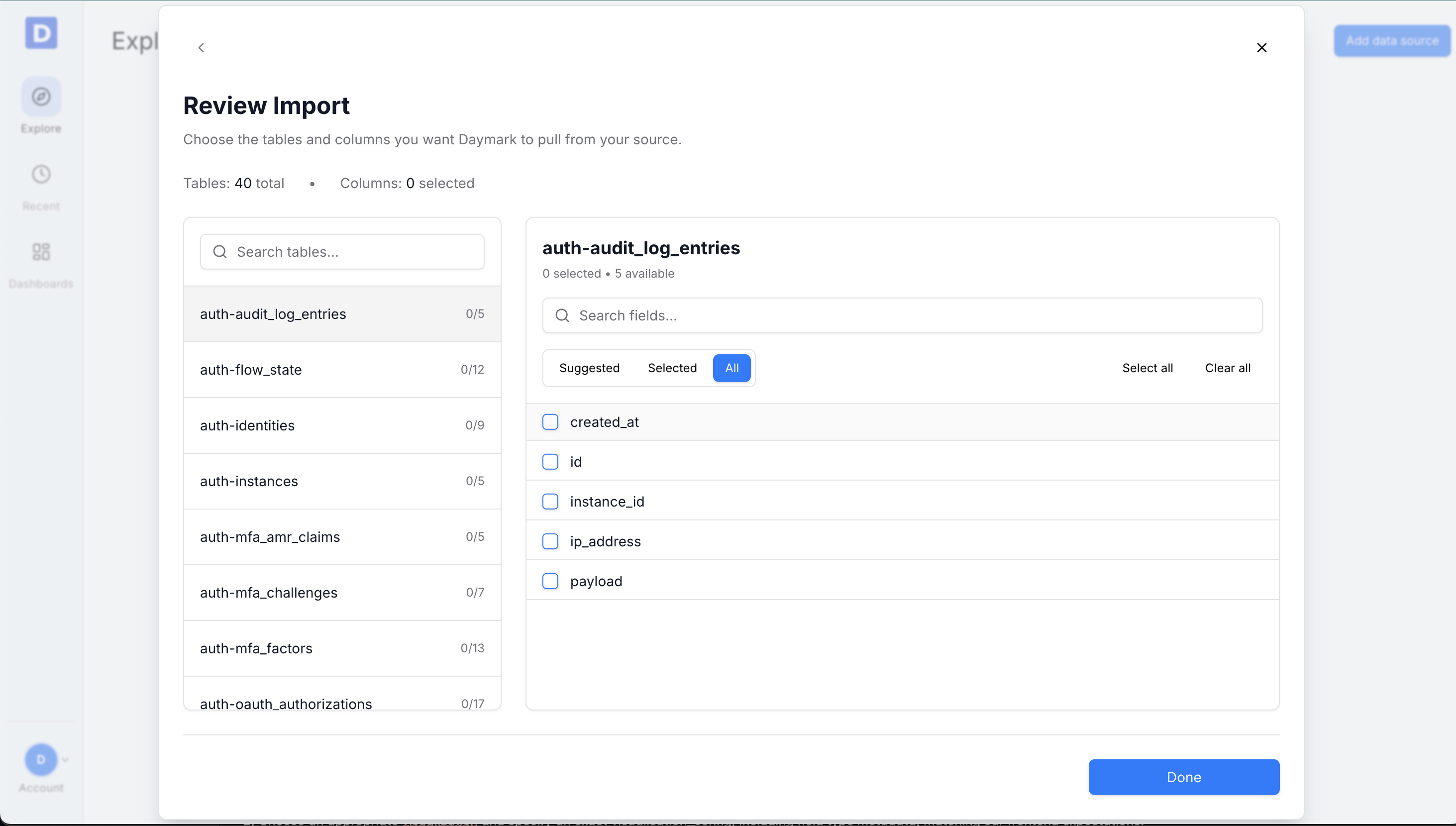
5
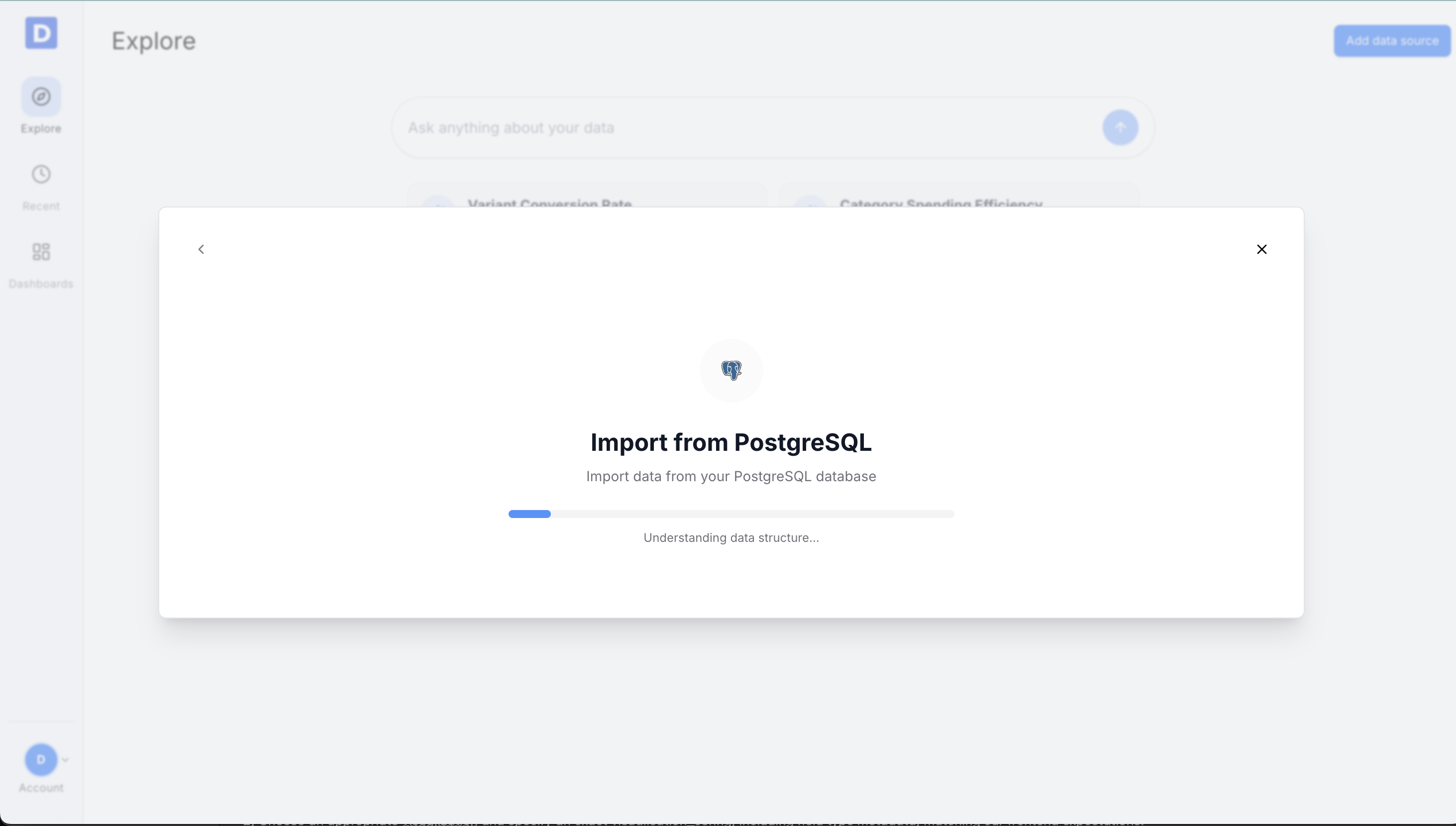
Importing data
Daymark shows the import progress as it pulls in your data.